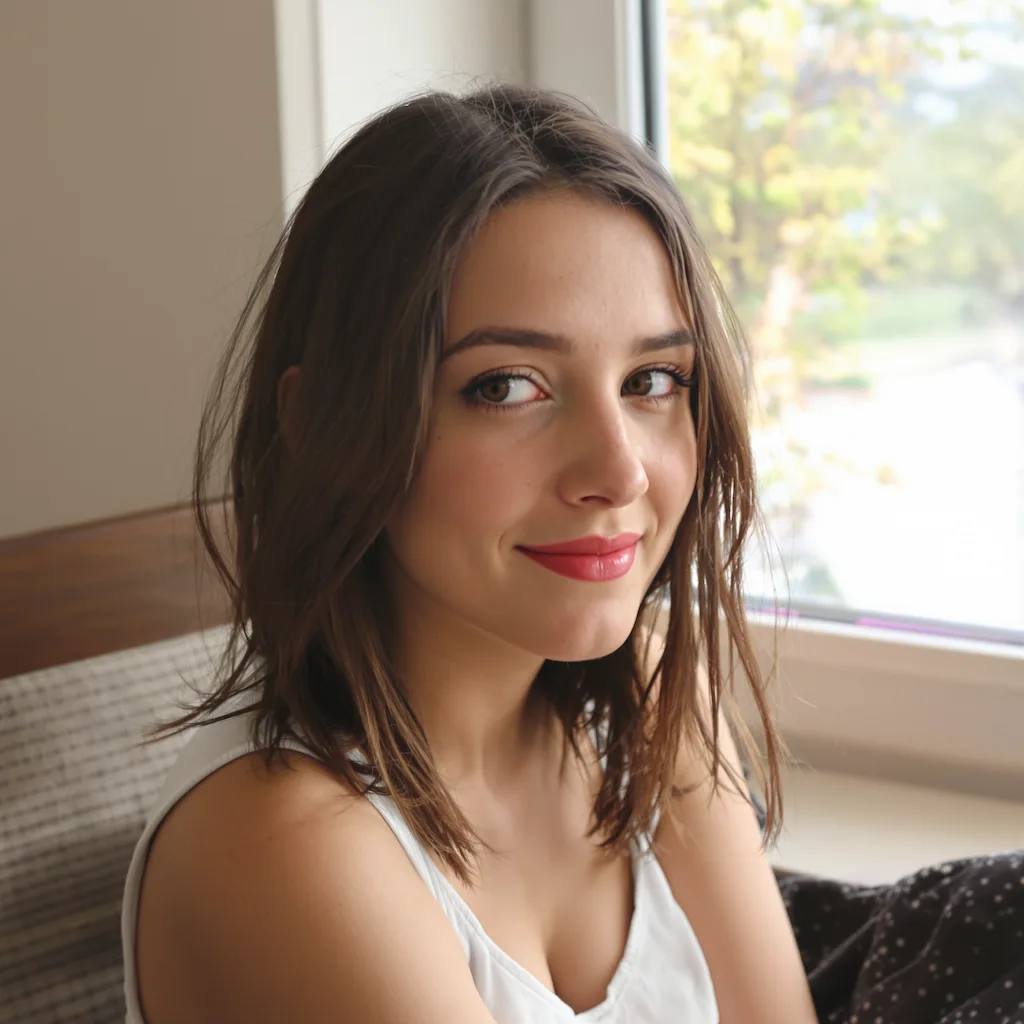
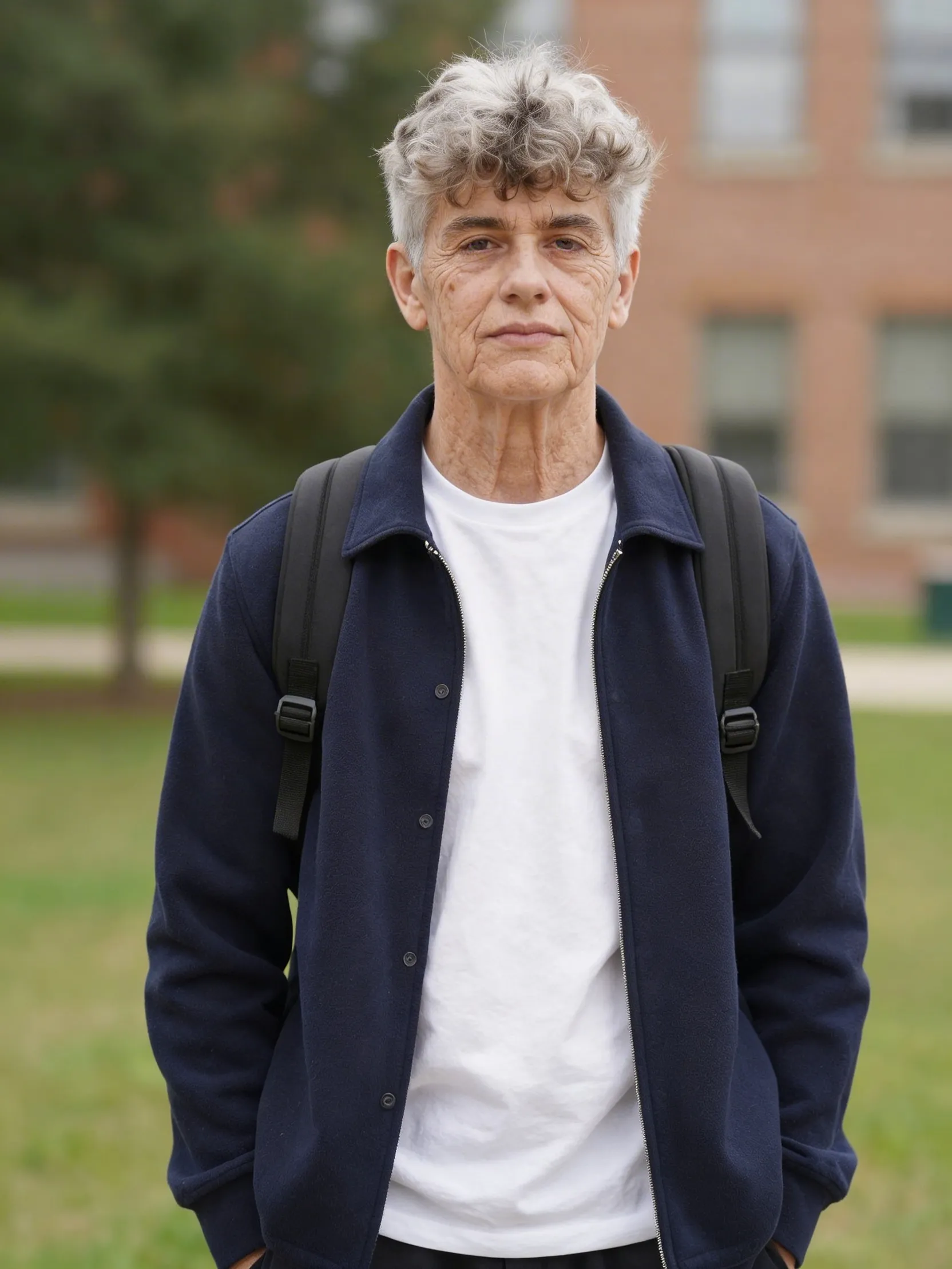
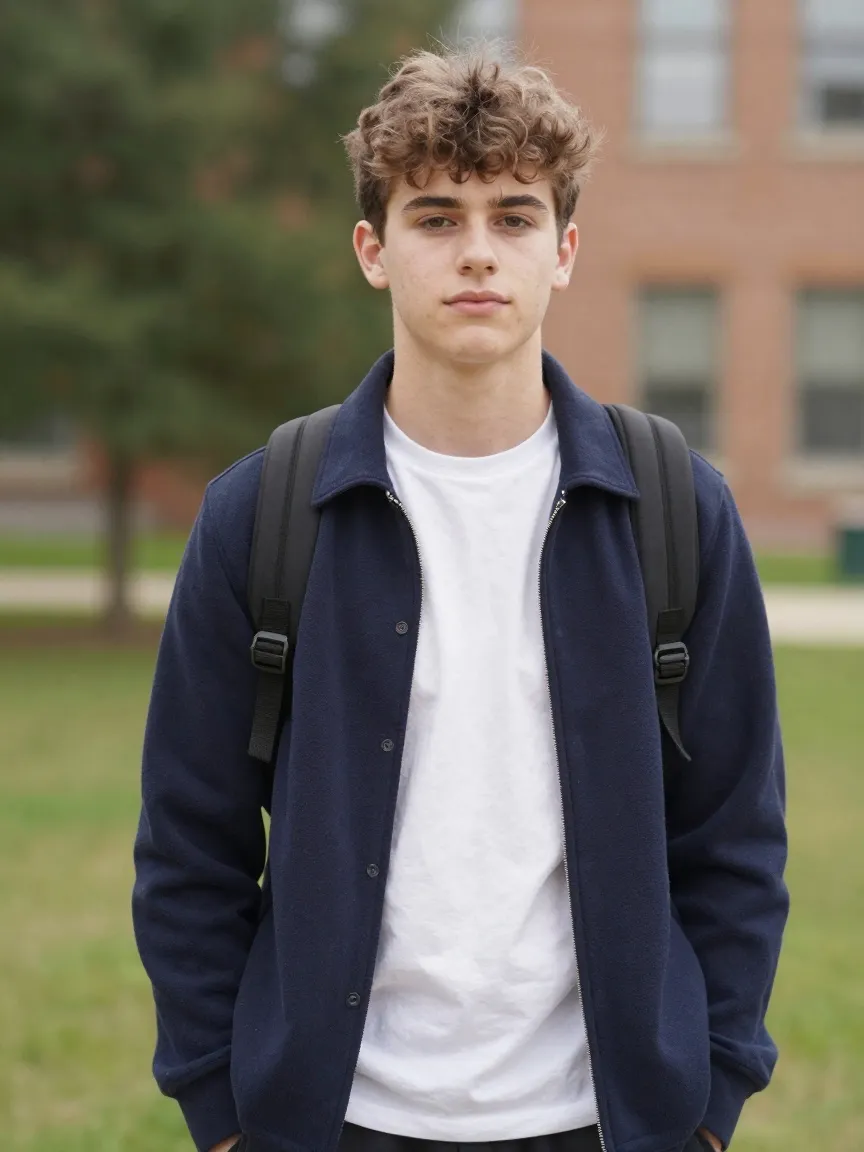
AI Age Filter

Use this AI age filter when you want to preview realistic age progression or age regression from a single portrait. Upload one face photo, choose an age target from baby, child, teen, young adult, middle aged, old, or very old, and generate a transformed portrait that keeps the person recognizable while shifting age cues.

What This Style Creates

A portrait with believable age changes such as older skin texture, younger facial softness, or a different life-stage look while keeping the core identity recognizable.

Best for

Creators testing age progression ideas for portraits, thumbnails, and storytelling visuals

Typical output

A portrait with believable age changes such as older skin texture, younger facial softness, or a different life-stage look while keeping the core identity recognizable.

Best input

Upload one clear portrait with a visible face and minimal obstruction around the eyes, nose, and mouth.

Not ideal for

Group photos with multiple visible faces competing for the same age edit

AI Age Filter

Upload one portrait, choose the age target, and generate an older or younger version with the dedicated age-filter workflow.

Choose one target life stage per generation for the cleanest age transformation.

Preview Comparison

The default before and after sample stays here until generation finishes.

AI Age Filter after example
After
AI Age Filter before example
Before
Drag to compare

Who This Style Is Best For

Creators testing age progression ideas for portraits, thumbnails, and storytelling visuals

Users who want to see how a face may look older or younger without manual prompt writing

People comparing multiple life-stage looks from one clear source portrait

Input Guidance

Upload one clear portrait with a visible face and minimal obstruction around the eyes, nose, and mouth.

Use a single-person image when possible so the age transformation stays focused on one subject.

Choose the age target based on the outcome you actually want to compare instead of jumping between many presets at once.

What An AI Age Filter Is Good For

An AI age filter helps you preview how the same person may look at a different life stage without manually editing facial details. Instead of guessing with a freeform prompt, you choose a specific age target and let the model push the portrait toward that stage.

That makes this page useful for creators, storytellers, profile experiments, social content, and anyone who wants a clearer age transformation workflow than a novelty face filter app usually provides.

How To Make A Photo Look Older Or Younger More Believably

The source portrait matters more than most people expect.

The best results usually start with one clear portrait and one visible face. When the eyes, skin texture, and face shape are easy to read, the age filter has enough information to shift wrinkles, softness, contour, and age cues without losing identity.

It also helps to choose one specific direction per generation. If you want to see an older version, pick old or very old. If you want a younger look, move toward teen, child, or young adult. Narrowing the target usually creates a cleaner transformation.

When To Use This Instead Of A Generic Beauty Filter

A beauty filter tries to polish the current face. An age filter tries to move the face to another life stage. Those are different jobs. If your goal is softer skin, brighter eyes, and better polish, a beauty filter is the better fit.

Use this page when age itself is the main variable you want to change. That includes making a portrait look older, younger, more mature, or more childlike in a controlled way.

Supported AI Age Filter Targets

This page supports seven age values: baby, child, teen, young adult, middle aged, old, and very old. That gives you a clearer set of life-stage outcomes than a generic slider with unclear semantics.

For most practical portrait edits, young adult, middle aged, old, and very old are the most useful comparisons because they preserve more of the original identity while still producing a visible age shift.

Why This Age Filter Page Is A Better Search Landing Page

People searching for terms like AI age filter, make me look older, or make a photo look younger usually want one thing: a direct workflow with obvious inputs and outputs. This page is built around that exact job instead of burying the capability inside a generic tool list.

That makes the page easier to rank, easier to understand, and easier to convert because the search intent, page copy, controls, and generation endpoint all line up.
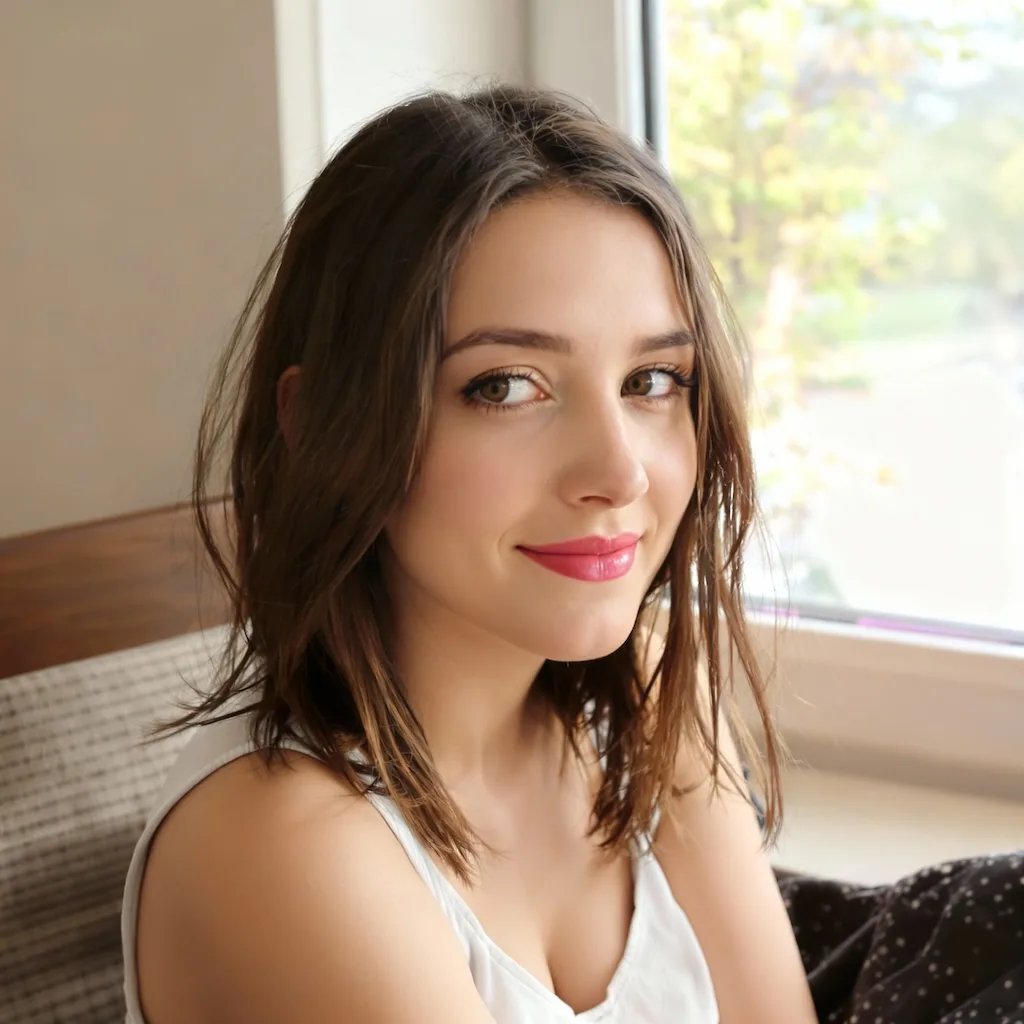
Why Nano Banana Fits This Style

This workflow removes the prompt-writing guesswork and exposes the exact age targets supported by the underlying API.

It is faster than trying to coax age progression manually from a general-purpose image editing prompt.

The page is built around realistic portrait age transformation, so the UX, metadata, and related links all match that intent.

Try The AI Age Filter

Upload one portrait, choose an age target, and generate a realistic older or younger version without writing a custom prompt.

Transform My Age

Why This Page Works

Direct age targets instead of vague prompt-based age edits
Supports seven presets from baby to very old
Built for one-photo portrait age progression and age regression
Keeps the generation flow inside the existing styles workflow
Useful for storytelling, creator experiments, and portrait what-if comparisons
Works without writing a manual age-editing prompt
Pairs well with upscaling when the source face is too soft

FAQ

What age targets does this AI age filter support?

This page supports baby, child, teen, young adult, middle aged, old, and very old. Choose the one closest to the life stage you want to preview.

Can this make a photo look both older and younger?

Yes. The filter supports both age progression and age regression. You can generate one result toward an older target and another toward a younger target from the same source image.

Will the transformed portrait still look like the same person?

That is the goal. The workflow is meant to keep the core identity recognizable while changing age-related facial cues such as softness, maturity, and visible aging.

What kind of photo works best for an age filter?

A clear portrait with one visible face works best. Avoid tiny faces, heavy sunglasses, or crowded group shots if you want a believable age transformation.

Is this different from a beauty filter?

Yes. A beauty filter improves polish on the current face. An age filter changes the apparent life stage of the face, such as making the person look older or younger.

Which age values are most realistic for portrait edits?

Young adult, middle aged, old, and very old are usually the most practical for realistic portrait comparisons. The more extreme jumps like baby or child can still be useful, but they are more stylized and identity drift is more likely.

AI Age Filter | Make A Photo Look Older Or Younger | Nano Banana